A Cardputer can be a hacking toolkit, a mesh radio, a game console or a synthesizer. Launcher is what lets it be all of them without plugging into a computer every time you switch. Here is what Launcher is, how to install it on a Cardputer or Cardputer ADV, how it installs and runs apps, and how to get back to it when an app takes over.
The short answer
Launcher is a free, open-source app manager for ESP32 devices. Flash it once with the web flasher (Chrome or Edge, over USB-C). After that, install apps from the SD card, from its OTA list over WiFi, or from your phone through its WebUI. At power-on, tap a key to open Launcher; do nothing and your app starts. Stuck inside an app? Press BTN RST and tap a key as it restarts.
- What is Launcher?
- How to install Launcher on a Cardputer
- How Launcher installs apps
- Where apps live in flash
- Example: installing and updating GLIDE
- Best Cardputer apps to try
- Troubleshooting
- FAQ
What is Launcher?
Launcher, by bmorcelli, is an application launcher for M5Stack, LilyGO, CYD and many other ESP32 boards. It is MIT-licensed, and both the original Cardputer and the Cardputer ADV are supported.
Without it, every new firmware means a computer, a cable and a flashing tool, and the new firmware replaces the old one. With it, the Cardputer flashes its own apps, keeps more than one installed, and gives you a menu to switch between them.
Everything happens from five menus:
How to install Launcher on a Cardputer
You do this once. The web flasher is the easy way and works on a Cardputer or Cardputer ADV.
- Open the flasher in Chrome or Edge on a computer. It needs Web Serial, which Safari and Firefox do not have.
- Plug in the Cardputer with a USB-C data cable (some charging cables carry no data).
- Pick your device (Cardputer or Cardputer ADV), connect, and flash. Wait for it to finish.
- Restart. The Launcher splash appears. Tap a key to open the menu.
Flasher won't connect? Put the ADV in download mode: slide the side switch to OFF, hold G0 (the right trigger on the top edge), plug in USB, then release. That is M5Stack's documented method.
Other ways in. Launcher's README also lists M5Burner, M5Stack's desktop flashing app for Windows, macOS and Linux, and the raw .bin from its Releases page with web.esphome.io or esptool.
Web flasher if you want
- Nothing to install
- The fastest route to Launcher
- Chrome or Edge on a computer
M5Burner if you want
- M5Stack's official firmware library
- To flash other M5 firmware directly
- A desktop app you keep around
Launcher vs M5Burner is not either/or. M5Burner flashes one firmware from your computer. Launcher lives on the device and installs apps without the computer, including many from M5Burner's own library.
How Launcher installs apps
-
From the SD card. Copy a
.bininto/apps/on the microSD, then open SD in Launcher, find the file and choose Install. - Over WiFi (OTA). Open OTA, join your network and pick from the online list, which pulls from sources like M5Burner's firmware library and GitHub. No computer needed. You can browse the same library on the web in the Launcher catalog.
-
From your phone (WUI). Start the WebUI and Launcher serves a web page on your network. Upload a
.binfrom your phone or computer, manage SD files, even edit text files.
Once installed, an app starts on its own at every power-on unless you tap a key at the splash. Launcher can also bind an app to a key, so one press from the menu starts it.
Where apps live in flash
The Cardputer ADV has 8 MB of flash. Launcher keeps itself in its own protected partition and puts each app you install into an app partition of its own, creating or resizing partitions as needed. That is why you can keep several apps installed, and why a misbehaving app cannot wipe Launcher.
Two practical results. Big apps, like emulators, may need you to change the partition scheme in CFG first. And since installing adds an app, updating one means deleting the old copy first, as the next section shows.
Want the full picture of flash, partitions and NVS? See ESP32 memory explained. Card trouble? The Cardputer SD card guide covers sizes, formatting and the "SD card not found" fix.
Example: installing and updating GLIDE
GLIDE, the pocket synth we make, is a good worked example because it uses all of this. The firmware is free; grab GLIDE.bin from its GitHub releases.
Install
-
Copy
GLIDE.bininto/apps/on the microSD. Keep the name exact, and eject the card properly before removing it. - Power on and tap a key at the splash to open Launcher.
- SD > apps > GLIDE > Install. From then on GLIDE starts on its own every time you switch on.
Update
-
Get back to Launcher. Press BTN RST (the left trigger) and tap a key as it restarts. Holding the
`key inside GLIDE only restarts GLIDE. - Delete the installed GLIDE first. Skip this and Launcher adds a second GLIDE tile next to the old one.
- Install the new file from SD > apps, or skip the card entirely: OTA, join WiFi, pick GLIDE.
Your sounds and settings survive: settings and your ten slots live in the device's settings storage (NVS), and your sound library lives on the microSD card, so updating the app touches neither. The full illustrated walkthrough is on our updating GLIDE page.
GLIDE
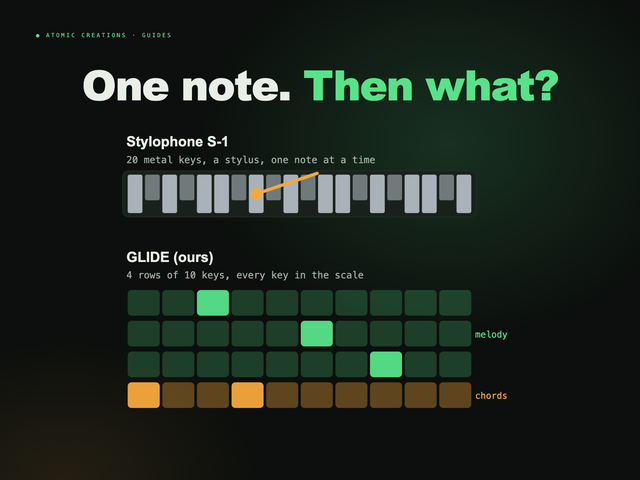
Pocket synth · Cardputer ADVFull disclosure: this one is ours. GLIDE turns the ADV's keyboard into four rows that play like strings: notes slide into each other, scale lock means no wrong notes, and a generative engine rolls sounds no other unit has. Hold fn+K and it hears the key of the song playing in the room.
The firmware is free to install through Launcher. If you would rather skip the flashing, we sell GLIDE ready to play, tested by hand with a microSD sound library ($119.99, checked October 2026). It is sold out right now; the next batch drops soon, so join the waitlist and you get the drop email 24 hours before it goes public.
Best Cardputer apps to try
A few favorites, all free and installable through Launcher:
| App | What it does |
|---|---|
| Bruce | WiFi, Bluetooth and IR tools. Our Flipper Zero guide compares it. |
| Meshtastic | Off-grid LoRa texting (needs a LoRa module) |
| Game Station | Retro console emulators |
| GLIDE | A pocket synth (ours) |
The full rundown, with what each one needs, is in our Cardputer ADV firmware and apps guide.
Troubleshooting
| Problem | Fix |
|---|---|
| App starts before I can press a key | Press BTN RST, then tap a key as the splash comes up. |
| SD card not found | Use SDHC, 32 GB or smaller, FAT32 with an MBR partition table. Launcher's maker recommends 8 or 16 GB cards. |
| The .bin is not in the SD list | It must sit in /apps/. Check the name, and eject the card properly after copying. |
| Two copies of the same app | Launcher adds rather than replaces. Delete the old one. |
| Web flasher won't connect | Chrome or Edge, a data cable, then download mode (switch OFF, hold G0, plug in). |
| Logo flashes, then it reboots over and over | Usually a flat battery. Switch ON, plug in, choose charge mode in CFG and give it an hour. |
FAQ
What is Launcher on the Cardputer?
Launcher is a free, open-source app manager for ESP32 devices, including the M5Stack Cardputer and Cardputer ADV. You flash it once, then install and switch between apps from the SD card, over WiFi or from your phone, without connecting to a computer each time.
How do I install Launcher on a Cardputer ADV?
Open the Launcher web flasher in Chrome or Edge, plug the Cardputer ADV in with a USB-C data cable, choose your device and flash. If it will not connect, put the ADV in download mode: switch it off, hold G0, plug in USB, then release.
How do I get back to Launcher from an app?
Press BTN RST, the left trigger on the top edge of the Cardputer ADV, to restart the device, then tap a key while the Launcher splash is showing. If you do nothing, the installed app starts again.
What is the difference between Launcher and M5Burner?
M5Burner is a desktop app that flashes one firmware from your computer over USB. Launcher lives on the device and installs apps itself from the SD card or over WiFi, and it can keep more than one installed. You can use M5Burner to install Launcher in the first place.
What SD card works with Launcher?
An SDHC card of 32 GB or less, formatted as FAT32 with an MBR partition table, works best. Larger cards and exFAT are supported in newer versions, but smaller cards like 8 or 16 GB are recommended.
Can Launcher keep more than one app installed?
Yes. Launcher keeps itself in a protected partition and gives each installed app its own partition, so you can keep several and pick one from the menu. Installing a new version adds another copy, so delete the old one first when you update.
Useful? Pass it on
← Browse all guides