Almost every "my Cardputer won't do anything" question turns out to be the microSD card. The Cardputer and Cardputer ADV lean on that little card for installing apps, saving files and holding app data, and it is picky about how the card is set up. Here is what size to buy, how to format it, how to lay it out, and how to fix "SD card not found", mostly in pictures.
The short answer
Use a microSD card of 32GB or smaller (8 or 16GB is ideal), formatted FAT32 with an MBR partition scheme. That is what Launcher, the app manager most Cardputer owners use, asks for. Put app installers in /apps. If the card is "not found", reseat it with the power off, then check size and format before anything else.
- What the SD card does on a Cardputer
- What size SD card to use
- How to format it (Windows and Mac)
- How to organize the card
- "SD card not found": the fix flowchart
- The SD card on GLIDE
- FAQ
What the SD card does on a Cardputer
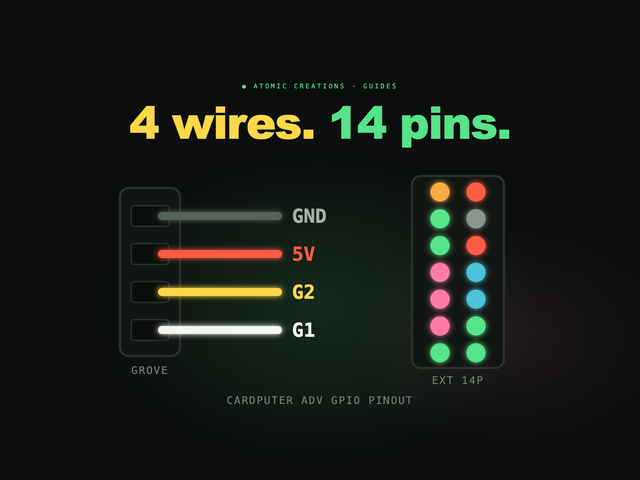
Both Cardputers read the card over SPI (M5Stack's docs list the pins: CS on G5 for the Cardputer ADV, G12 on the original). The key thing to understand is that the card and the device's own memory do different jobs.
That split explains a lot of confusion. A new .bin file sitting on the card does nothing until you install it. And because installed apps live in flash, most apps keep running with the card removed; they just lose whatever they stored on it.
What size SD card to use
M5Stack's spec pages list the microSD slot and its pins but no capacity limit. The clearest guidance comes from Launcher, whose README says: use an SDHC card (not SDXC), 32GB maximum (its author uses 8 or 16GB), formatted FAT32 with an MBR partition scheme. Launcher 2.8.0 and later also read exFAT and bigger cards, but smaller ones are still recommended.
Capacity is rarely the bottleneck anyway. App installers are a few megabytes each, and a sound or script file is tiny, so even 8GB holds far more than you will fill. Brand and speed class matter less than buying a genuine card from a reputable seller; fake "high capacity" cards are a common cause of corrupted files.
How to format it (Windows and Mac)
Formatting erases the card, so copy anything you want to keep first. Then pick your computer:
- Windows, 32GB or smaller: open File Explorer, right-click the card, choose Format, set File system to FAT32, and click Start.
- Windows, larger than 32GB: Windows' own format window will not offer FAT32 at that size. Use Rufus (the tool Launcher's README suggests) with Partition scheme MBR and File system FAT32. Or simply use a smaller card.
- Mac: open Disk Utility, choose View > Show All Devices, select the card itself (the top-level device, not the volume under it), click Erase, and pick Format MS-DOS (FAT) with Scheme Master Boot Record.
- A card that is acting strange: run the official SD Memory Card Formatter from the SD Association (Windows and Mac). It resets a card to the SD standard, which for 4 to 32GB cards is FAT32.
The GPT trap. Some tools default to a GPT partition scheme. The card looks fine on your computer but Launcher will not read it. If you formatted it yourself and it is "not found", redo it with MBR.
How to organize the card
Each app creates its own folders the first time it needs them, so you mostly just need to know where installers go.
/apps with plain names (GLIDE.bin, not GLIDE(1).bin). Leave the folders other apps create alone.-
Installers go in
/apps. In Launcher, choose SD, openapps, pick the file and choose Install. Our Launcher guide covers this step by step. - Do not rename or move app data folders. Apps look for them by exact path.
- Bruce has its own SD file manager and runs BadUSB scripts from the card, so it shares the card happily with everything else. See our Cardputer ADV firmware guide for what else to put on it.
"SD card not found": the fix flowchart
Work down this list in order. The first two steps fix most cases.
- Always power off before removing the card. Pulling it out of a running device is the classic way to corrupt it.
- Eject properly on your computer before taking the card out, or the last files you copied may not be there.
- If your computer offers to "repair" a card that holds files you care about, copy them off first, since a repair or format can wipe them.
The SD card on GLIDE
GLIDE
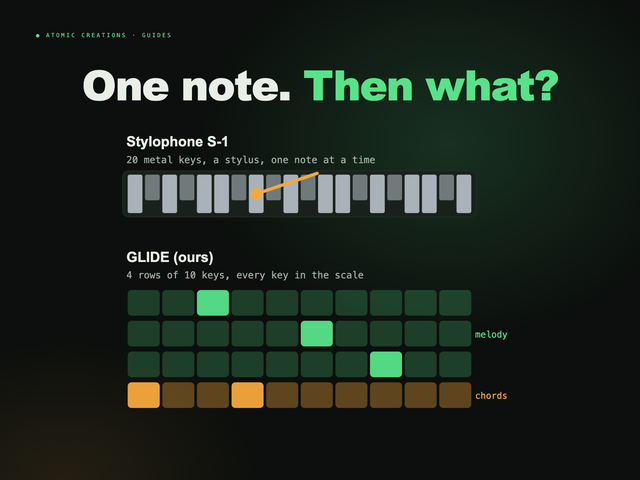
Pocket synth · Cardputer ADVFull disclosure: this one is ours. GLIDE is a pocket synth for the Cardputer, and the SD card is its unlimited sound library. Roll a new sound with Randomize, hit Save to SD, and it is stored as a named .gpat file in /glide, as many as the card holds. The library survives firmware updates and travels from card to card, so you can swap sounds with friends. A factory reset never touches it.
No card? GLIDE still plays perfectly; the ten built-in slots and your settings live in the device's own memory. The card just grows the library past ten. Every GLIDE we sell ships with a microSD already installed and loaded with sounds (browse the sound library).
GLIDE is $119.99 (checked October 2026) and sold out right now. The next batch drops soon: join the waitlist and you get the drop email 24 hours before it goes public. Already have a Cardputer ADV? The firmware is free; see what GLIDE does.
Stuck on something not covered here? Our help page covers the GLIDE-specific fixes.
FAQ
What size SD card does the Cardputer support?
Use a microSD card of 32GB or smaller, ideally 8 or 16GB. M5Stack does not publish a capacity limit, but Launcher, the app manager most Cardputer owners use, recommends an SDHC card of 32GB maximum formatted FAT32. Launcher 2.8.0 and later can read bigger exFAT cards, but smaller cards are still recommended.
How do I format an SD card for the Cardputer?
Format it as FAT32 with an MBR partition scheme. On Windows, right-click the card in File Explorer and choose Format, FAT32 (for cards up to 32GB). On a Mac, use Disk Utility with Show All Devices, select the card, and erase it as MS-DOS (FAT) with Master Boot Record. For larger cards on Windows, Launcher's author suggests Rufus.
Why does my Cardputer say SD card not found?
Usually the card is not fully seated or is in the wrong format. Power off, push the card in until it clicks, and power on. If that fails, check that it is 32GB or smaller, formatted FAT32 with MBR (not exFAT or GPT), and that it works in a computer. Some firmware simply does not use the SD card.
Does the Cardputer ADV support exFAT?
Launcher supports exFAT and cards larger than 32GB since version 2.8.0, but its author still recommends a smaller FAT32 card, and other apps may only read FAT32. A FAT32 SDHC card of 8 to 16GB is the safe choice.
Where do apps go on the Cardputer SD card?
Put app installer files (.bin) in the /apps folder at the root of the card. In Launcher, choose SD, open apps, pick the file and choose Install. The app is copied into the device's flash, so the .bin on the card does nothing until you install it.
Can I remove the SD card while the Cardputer is on?
Power off first. Pulling the card out of a running device can corrupt it. On the Cardputer ADV the slot is spring loaded: press the card in until it clicks and it springs back out.
Does GLIDE need an SD card?
No. GLIDE plays perfectly without a card, with its ten sound slots and settings stored in the device's own memory. The SD card adds an unlimited library of named .gpat sounds that survives firmware updates and moves between cards.
Useful? Pass it on
← Browse all guides